Prerequisites
- Make sure you have connected to Hubble by following the instructions in the Connecting page
- You have access to Google Looker Studio
- You have read and understand the general Best Practices for querying BigQuery data
Create a Report in Looker Studio
Attach Data Sources to Looker Studio
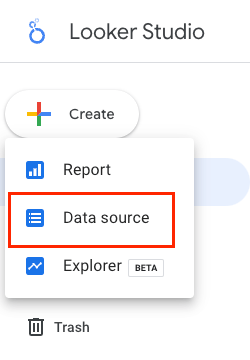
- Select
Create --> Data source
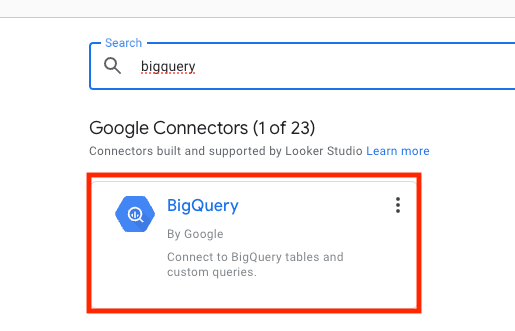
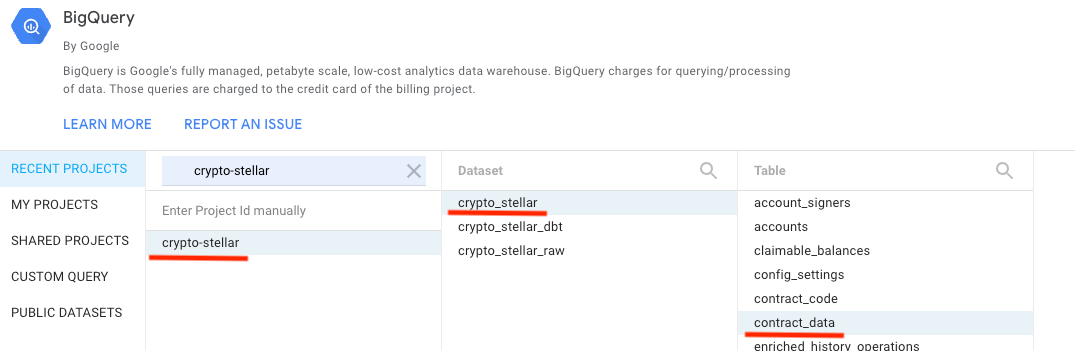
- Find and select the
BigQuery Google Connector
- Find the desired tables that you want to connect. For this example you will want to add a data source for:
crypto-stellar.crypto_stellar.contract_data
Create a New Report (Dashboard)
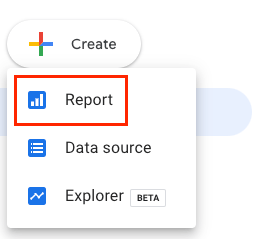
- Select
Create --> Report
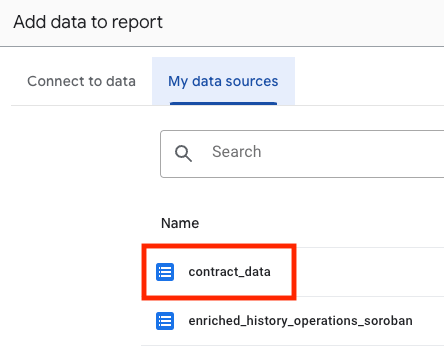
- Add your data sources from above
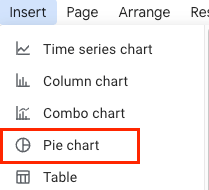
- Insert a
Pie chart
- Choose
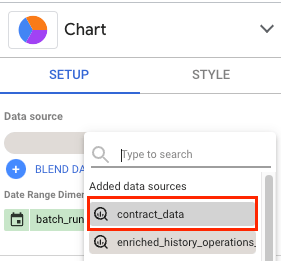
contract_dataas theData source
- Choose
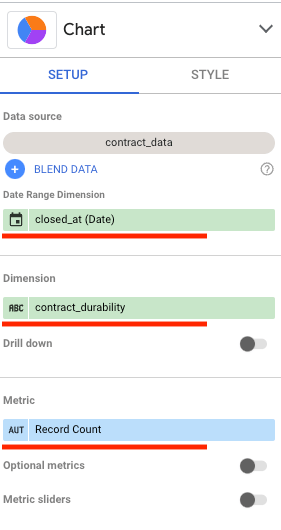
closed_atas theDate Range Dimensionandcontract_durabilityas theDimension
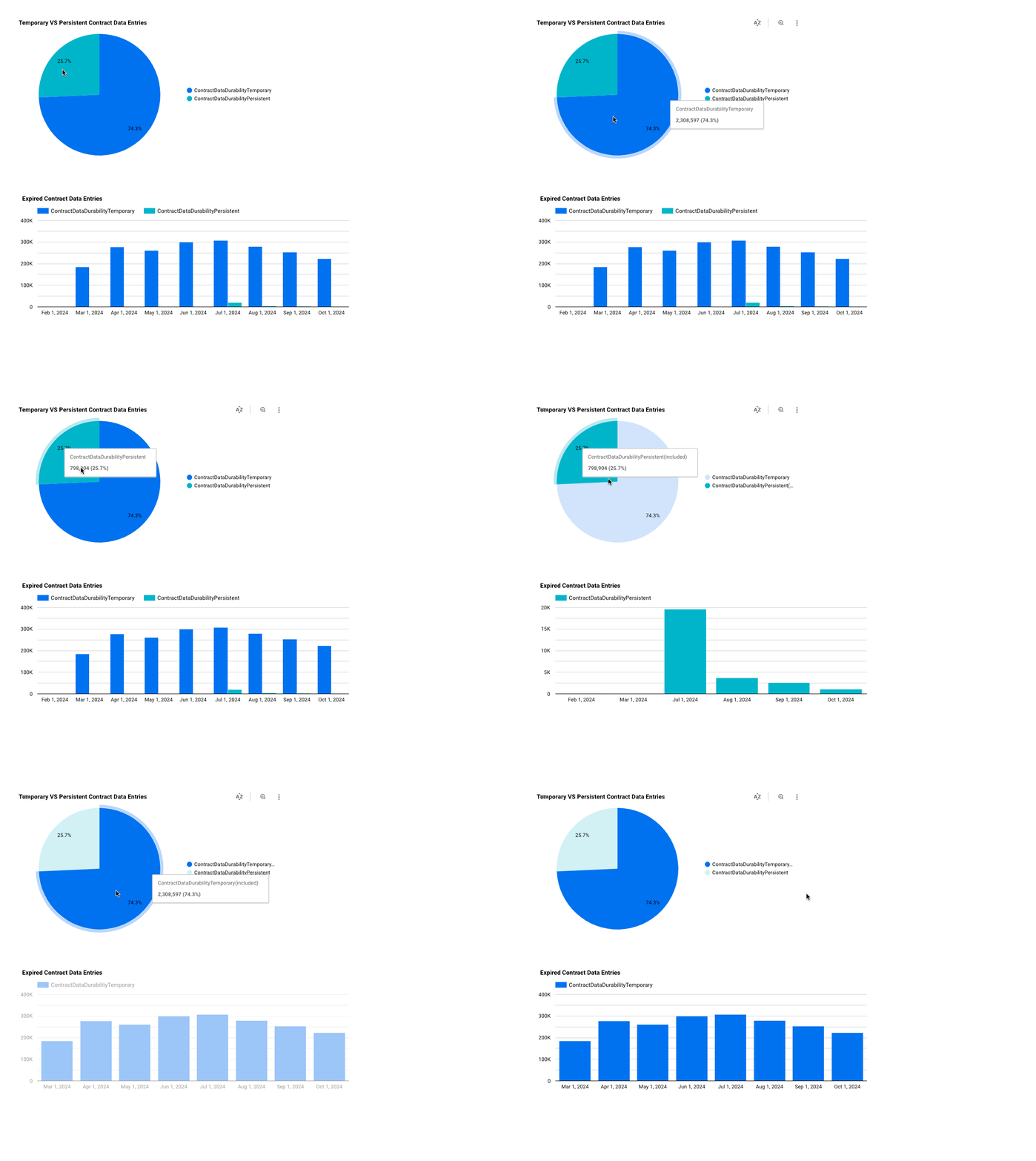
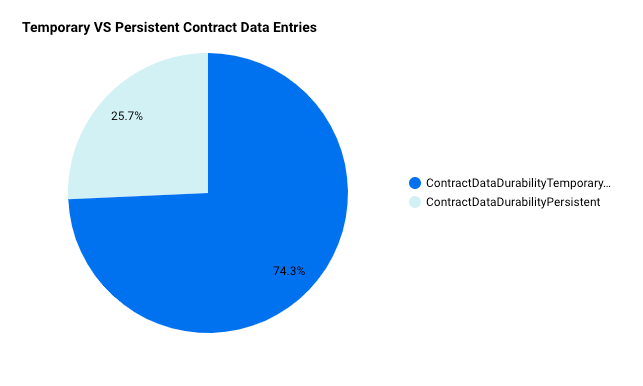
- You should now have a pie chart showing the percentage of Temporary VS Persistent Contract Data Durability
Use Custom SQL to Create a Chart
- In your report, click
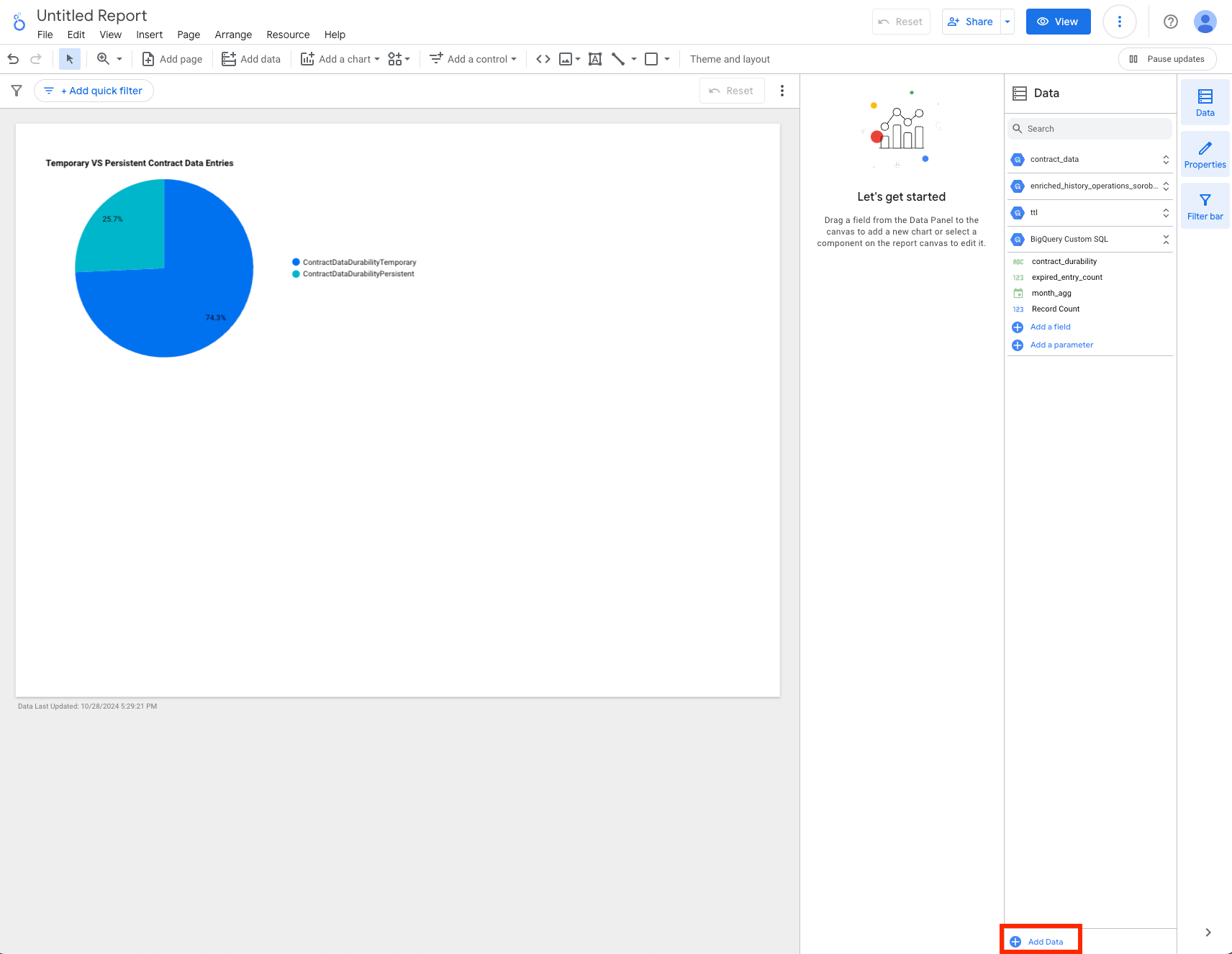
Add Datawhich will be near the bottom right of your window
- Select
BigQueryand chooseCUSTOM QUERYand select your desiredBilling Projectwhere the query will be charged
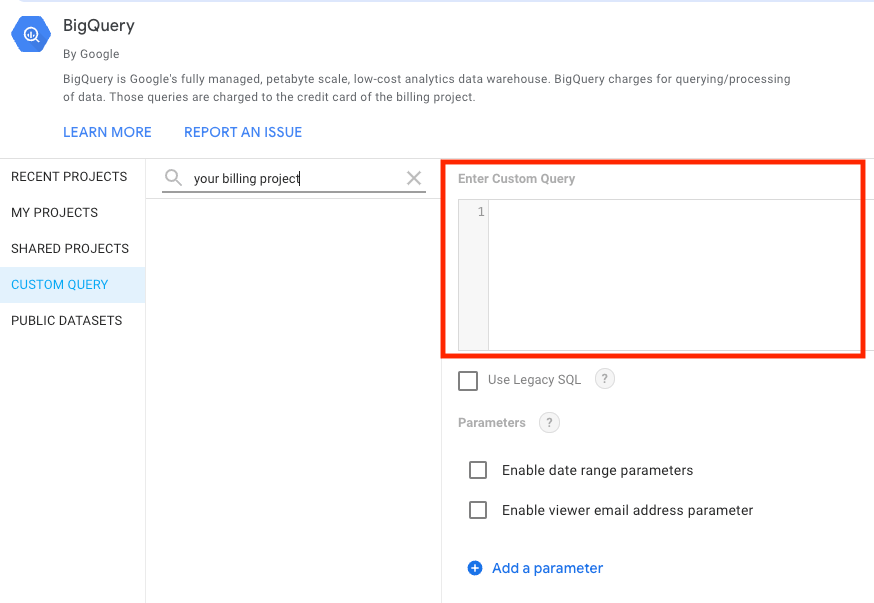
- Add the following query and click
Add
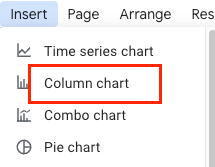
- Insert
Column chart
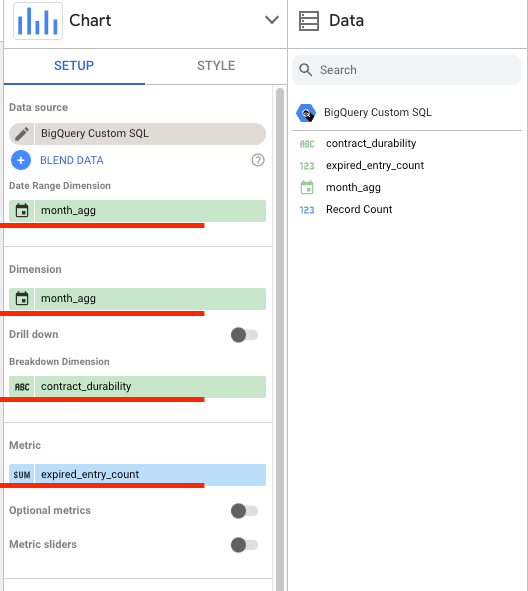
- Select the following:
BigQuery Custom SQLas yourData sourcemonth_aggas theDimensioncontract_durabilityas theBreakdown Dimensionexpired_entry_countas theMetric
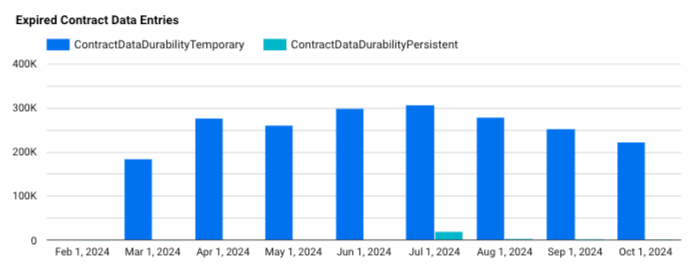
- You should now have a column chart (bar chart) showing the expired Soroban contract entries
Applying a Global Filter
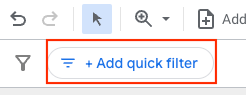
- Click
+Add quick filterto apply a filter throughout the whole report
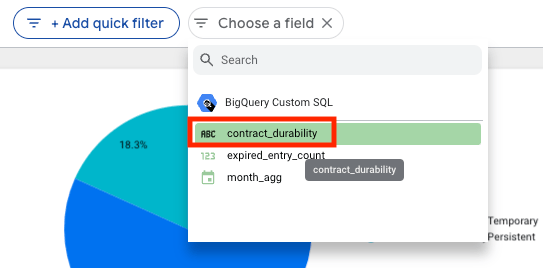
- Select
contract_durabilityto filter bycontract_durabilityvalues
- Select only
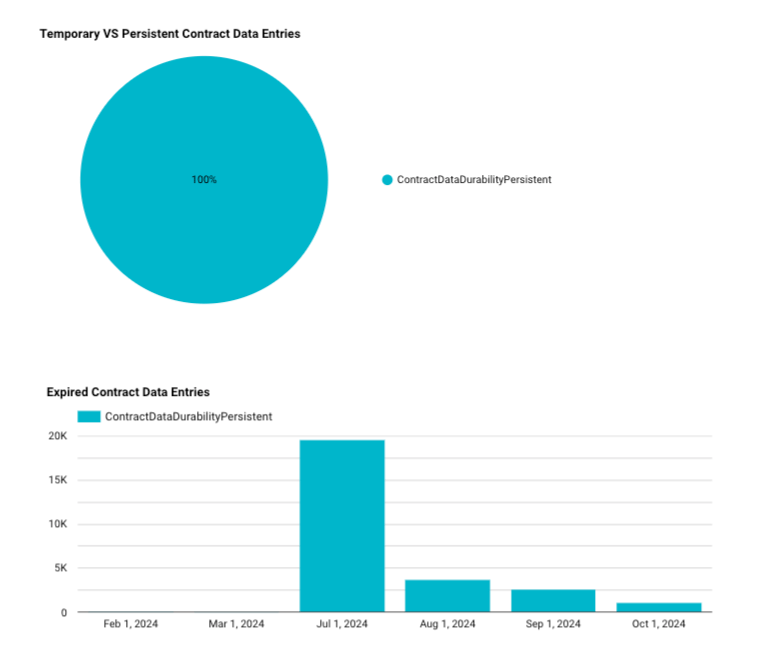
ContractDataDurabilityPersistentand clickApply
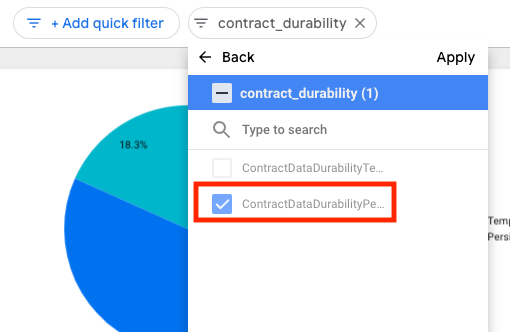
- Your charts should now be filtered and show only
ContractDataDurabilityPersistentdata